Contents 5
Most people who are new to AI first meet it in the chat window on the ChatGPT or Claude website. But people also use the same AI in apps installed on a phone or computer, and in an unfamiliar program called the terminal. It's the same AI, so why use it in several places?
It's because what AI does for us and what we have to do ourselves change depending on where we use it. In this post I'll start with what the browser, the app and the terminal were each made for, and then go through how that difference shows up in actual work. I'll also talk about where to begin if you're just starting out, as of November 2026.
How is using AI in the browser, the app and the terminal different?#
Let me start with what each of these places is.
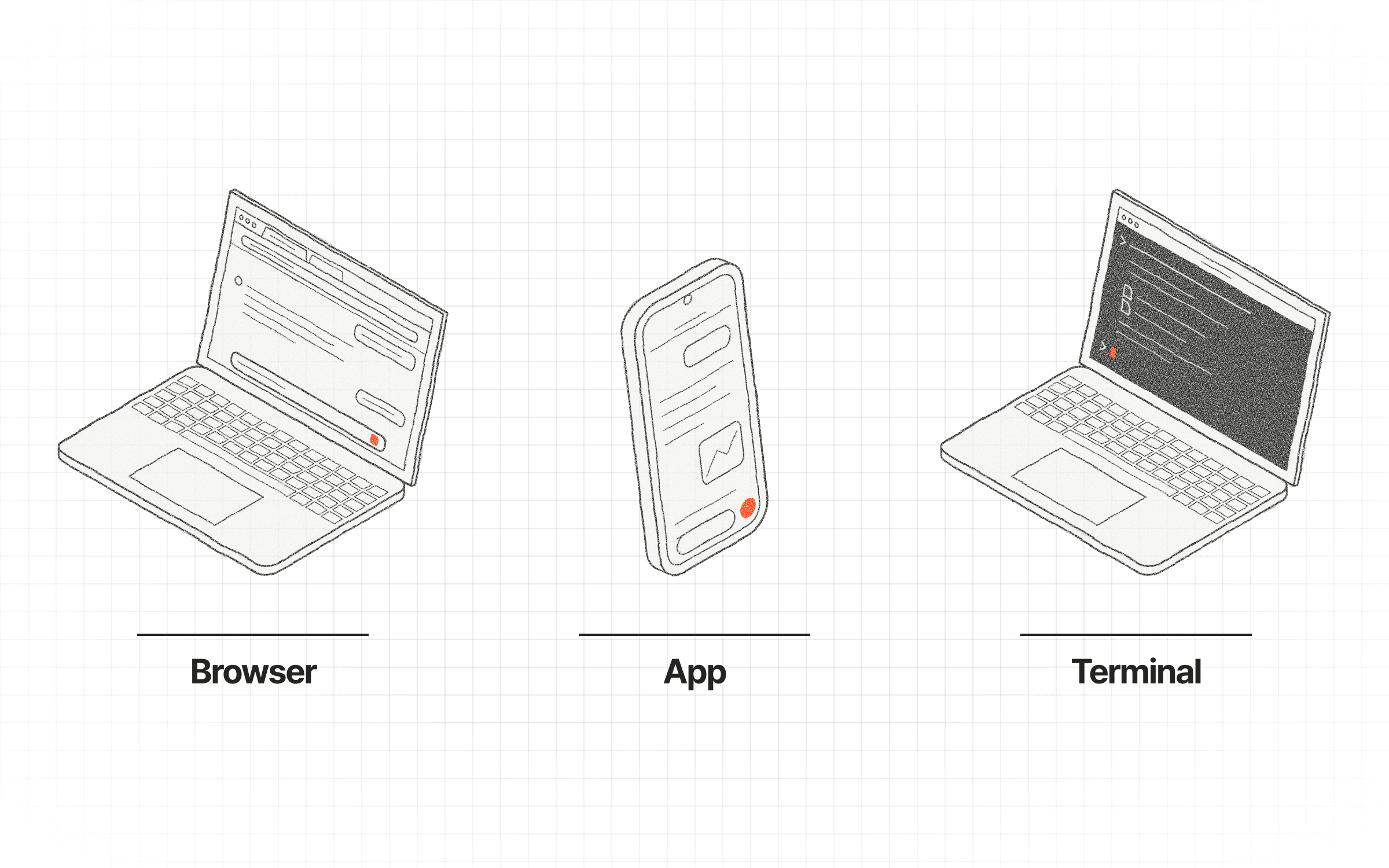
- Using AI in the browser means opening an AI website (chatgpt.com, claude.ai) in a web browser like Chrome or Safari and chatting there.
- Using AI in an app means installing an AI app (the ChatGPT app, the Claude app) on your computer or phone and chatting there.
- Using AI in the terminal means starting an AI tool like Claude Code or Codex in a program where you type commands as text, such as the Terminal app on a Mac or PowerShell on Windows. A session is one stretch of work that runs from when you start the AI tool until you end it.
Going by the names, the browser, the app and the terminal all look different, but the browser and the app really only differ in the screen, and the way you work is almost the same. In this post I'll group the two as chat and compare them with the terminal. The real difference between chat and the terminal is in where the AI works, in other words the workspace.
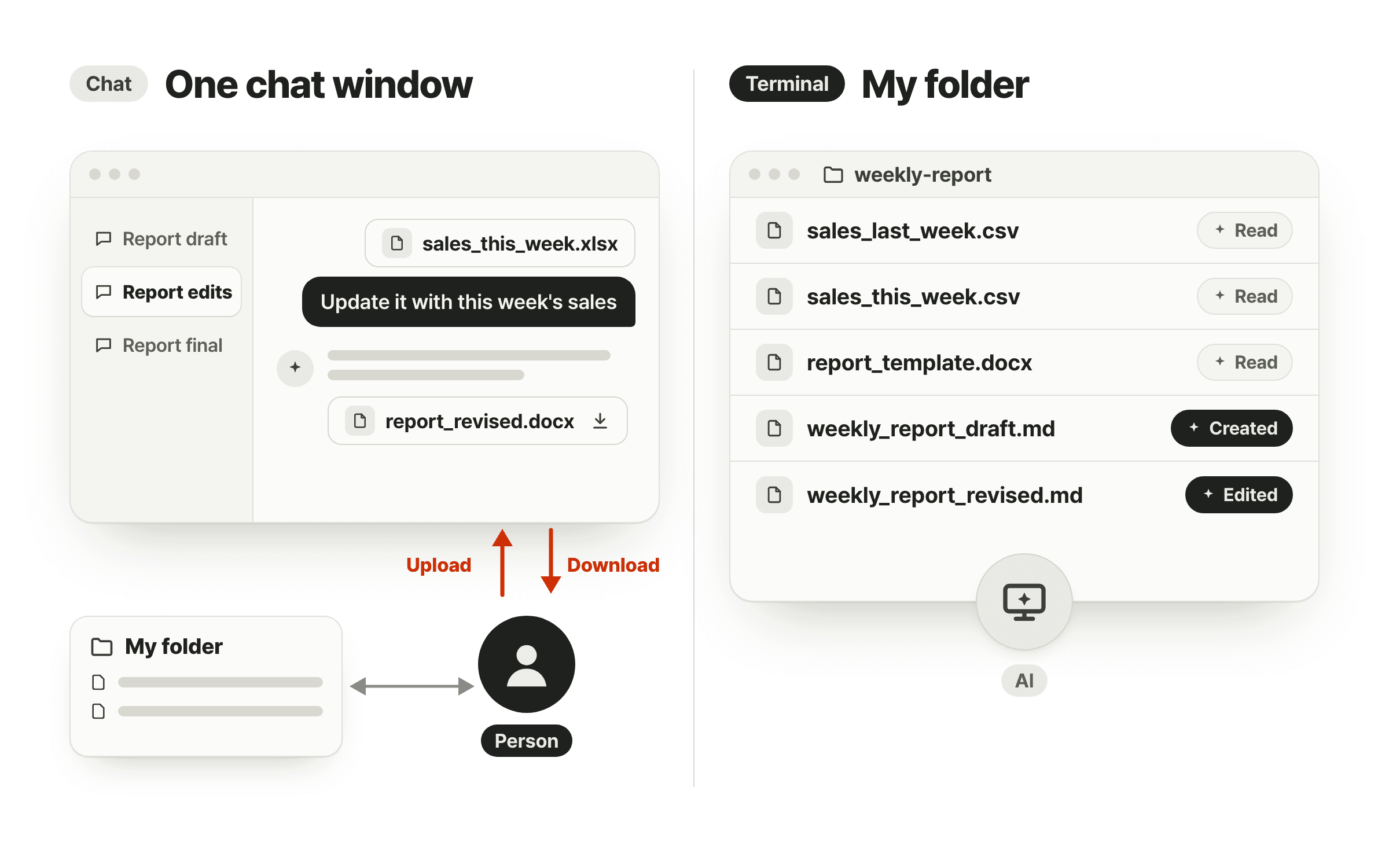
Chat is, as the name says, a place made for talking with AI. So its workspace is a single chat window. For a conversation, this one window is enough.
But we often turn to AI because we want to get work done, more than for the conversation itself. Work like writing a report, organizing data or revising a proposal. We're trying to do work in a place made for conversation, and that is where the gap comes from.
AI tools in the terminal were made from the start for giving AI work to do. Their workspace is a folder on your computer. Claude Code and Codex work inside the folder you choose, with the files in it. To use an analogy, chat is like sending files one at a time over a messaging app and asking for help, and the terminal is like opening up a shared folder to a colleague and asking for help.
What kind of work suits chat, then, and where does it start to get inconvenient?
What kind of work suits chat in the browser and the app?#
The work that suits chat is clear. For work that ends in a single exchange, like asking a question, polishing a piece of writing or summarizing material, chat is the most convenient. You can use it as soon as you log in. If you install the app, you can ask by voice or with a photo on your phone and open it with a single shortcut on your computer, so asking gets even faster.
But when the work doesn't end in a single exchange, things change. Even one weekly report means gathering the data files, writing a draft, revising it several times and then making it again the next week. When we do all of this in one chat window, everything AI can't do outside the chat window becomes our job.
- Uploading and downloading files: The data files are in our own folder and AI is inside the chat window. Every time a file is needed we upload it, and we have to download what AI makes and file it back into the folder. We often find ourselves wondering, "Did I already upload this file?"
- Scattered results: The draft stays in Monday's conversation and the revision in Tuesday's. To find which conversation has the final version, we have to open the conversations in the list one by one.
- Broken context: When we open a new conversation, the work we were doing yesterday doesn't carry over. The memory features in ChatGPT and Claude do draw on some of our past conversations, but it's hard for them to carry over the files we were working on and how far we got exactly as they were.
- One step at a time: AI in chat basically gives one answer and stops. We have to upload the files for the next step again and ask again, like "Now make a table with this too."
If it's one report, it's bearable. But what if we have to make it every week? What if there are five files to fix? The time spent moving files and explaining things to AI again starts to grow longer than the time spent writing the report.
Of course, chat has its own way to reduce this inconvenience: projects in ChatGPT and Claude.
A project is a space where you keep the instructions and materials for each kind of work in one place and chat inside it, so the instructions and materials carry over even when you open a new conversation (I'll cover how to use them in Step 2). Projects can cut down the broken context quite a bit. Passing files back and forth, though, is still our job.
For the AI to take over this job as well, it has to work inside our folder. That is exactly how the terminal works.
What gets better when you move from chat to Claude Code or Codex in the terminal?#
When you hear the word terminal, I imagine what comes to mind is a black screen with line after line of unfamiliar commands. So do you have to memorize commands first to use AI in the terminal? No. You run the AI tool in the folder you want to work in, and then write what you want done the way you'd normally say it.
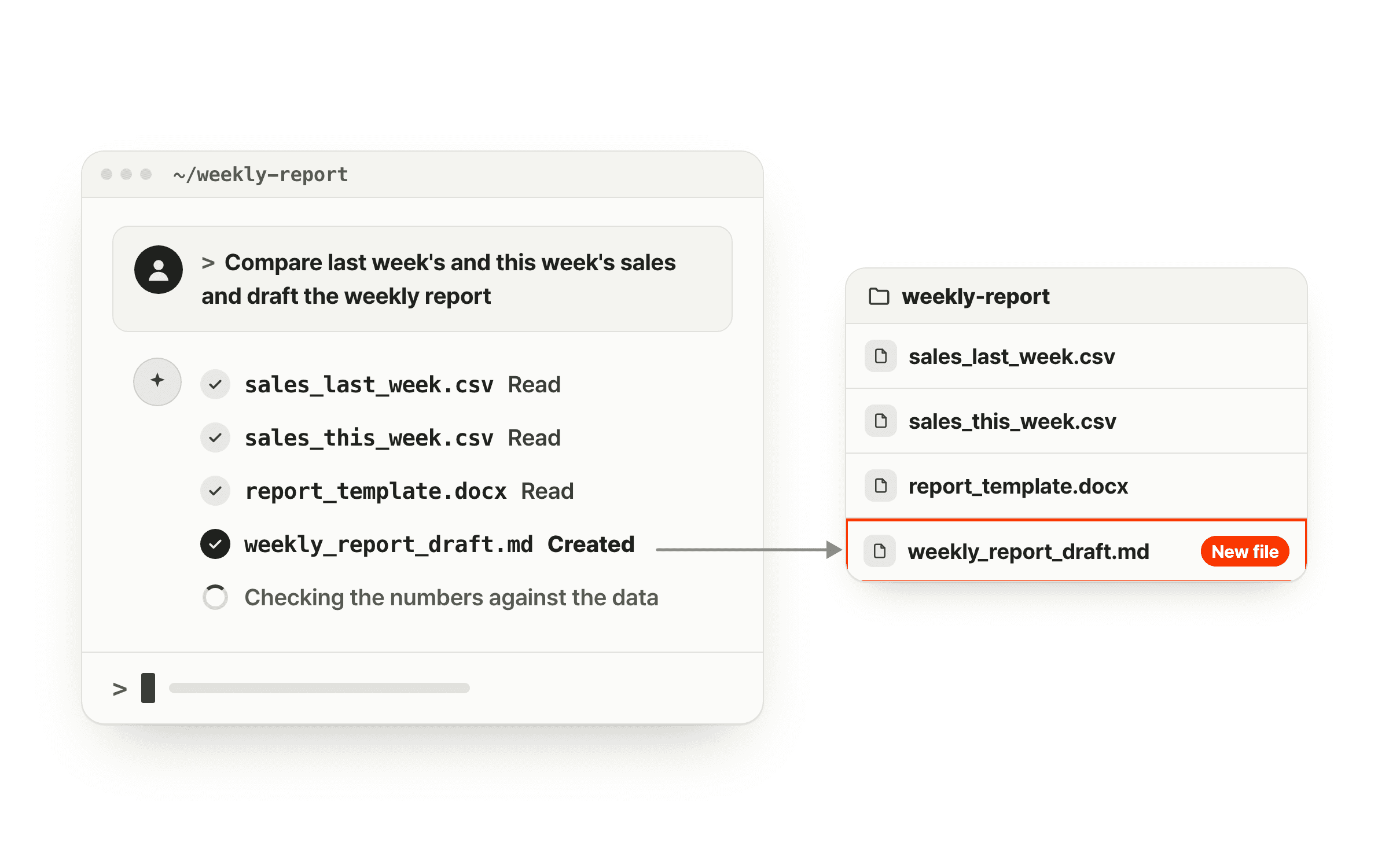
What if you had done the work on the screen above in chat? You would have uploaded the data files one by one, downloaded the draft AI made, and uploaded the files again if a number was wrong.
In the terminal this process is much shorter. The AI opens and reads the data files in the folder, and creates the draft in the same folder too. There's no need to scroll back through the conversation wondering, "Did I already upload this file?"
Because the AI works inside your folder, the other inconveniences we saw earlier are resolved as well. First, you no longer have the draft in Monday's conversation and the revision in Tuesday's. The draft and the revision both pile up neatly as files in the same folder, so you don't need to open the conversations in the list one by one to find the final version. The next day, if you write "Let's continue the report from yesterday," the AI opens the files left in the folder and first checks how far you got.
You also spend less time rewriting rules like "Compare sales with last week and put the table first" every time you open a new conversation. If you write these working rules in an instructions file (CLAUDE.md for Claude Code, AGENTS.md for Codex) and keep it in the folder, the AI reads the file on its own every time it starts a session. In a way, this file does in the folder what a project's instructions did in chat.
Since all the files it needs are in the folder, the AI doesn't wait for you before moving to the next step either. As on the screen above, it reads the files, makes the draft and even checks the numbers again, all from a single request. In chat, that would have meant uploading files and asking again at every step.
All you have to do is set the direction of the work and check the results along the way. In the meantime you can do other work. I think the more a job involves editing files many times, like a report whose numbers have to be corrected several times, the bigger the difference from chat.
The terminal has its drawbacks too, of course.
- At first you have to install the AI tool and learn how to run it in a folder. You don't need to memorize commands, but it can feel unfamiliar the first time.
- Because the AI carries on through several steps by itself, you reach your plan's usage limit quickly. At first it's a good idea to give it small tasks and get a feel for how much one run uses.
- The AI changes your files, so you have to check the results as you go. In the permission settings, you can decide how much it is allowed to do.
Here are the differences we've seen so far in one table (as of November 2026).
| Category | Browser | App | Terminal |
|---|---|---|---|
| Made for | Talking with AI | Talking with AI (quickly, anywhere) | Giving AI work to do |
| Where you use it | A web browser like Chrome or Safari | An AI app installed on your computer or phone | The Terminal app on a Mac, PowerShell on Windows |
| Main services | chatgpt.com, claude.ai | The ChatGPT app, the Claude app | Claude Code, Codex |
| How to start | Go to the website and log in | Install the app and log in | Install the tool and run it in the folder you want to work in |
| How your files are handled | You upload them to the chat window and download the results | Same as the browser | AI directly reads, edits and creates files in the folder you choose |
| Workspace | A single chat window | A single chat window (history carries over from the browser) | A folder |
| While AI works, you | Wait for the answer, then ask the next question | Wait for the answer, then ask the next question | Hand over the work and check the results along the way |
| Learning effort | Almost none | Almost none | You have to learn the setup and how to use it |
| Good for | Questions, polishing writing, summarizing material | Asking on the go, asking by voice or photo | Work where you edit files many times and keep them, like reports, data and images |
Where should you start if you're new to AI?#
Looking at the table, the further right you go, the more there is to learn and the more AI touches your files. Even so, I don't think you need to start with the terminal. You can start with chat, where there's less to learn, and it won't be too late to move over once the file work grows. Put in order, it goes like this.
- Ask AI in the browser or the app. Get used to talking with AI first by asking questions and getting answers.
- Create a project for work you repeat. If you keep the instructions and materials for each kind of work in a project, you don't have to repeat the same explanation in every new conversation.
- Do file work in the terminal. When you find yourself editing files many times, that's when to try the terminal.
If the black screen of the terminal really feels like too much, you can start step 3 in a desktop app. You can use Claude Code in the [Code] tab of the Claude desktop app, and Codex in the ChatGPT desktop app as well. Even though what you see is an app, if the AI is working inside your folder, you're working the same way as in the terminal.
And you don't have to pick just one place. Even after you start using the terminal, you can ask in the app on your phone while you're on the move and give the report work to the terminal on your computer. Just use the place that fits the work.
Wrapping up#
I'd suggest taking a look at how you exchange files with the AI you use now. If you upload and download files often, it's time to try the terminal.
In the next post, I'll go through how to choose which AI model to use in the place you've picked and how deeply to have it think.
You can use the terminal without knowing how to code. The only commands you type yourself are one line you copy and paste from the official guide when installing, and the tool's name (claude or codex) after going to the folder you want to work in. After that, you write what you want done the way you'd normally say it.
As of November 2026, Codex is available on the free ChatGPT plan and Claude Code is available on the Claude Pro plan and above. The free plan has little usage, though, so you can reach the limit quickly if you give it work that runs through several steps. Plans change often, so I recommend looking at each service's plan page before you start.
You can worry less if you start in a practice folder with copies of the originals. In both Claude Code and Codex, the permission settings can make AI ask for approval before it edits a file. The defaults differ by tool and version, so it's a good idea to check what the current setting is when you first start it.
Even in the terminal, the contents of the files the AI reads are sent to the AI company's servers. The AI tool runs on your computer, but the AI model that writes the answers runs on those servers. For company data, I recommend first checking your company's AI usage policy and the data training setting on your account.
In the terminal, the AI can open an Excel file in the folder, organize the numbers and turn the result into a new Excel or PowerPoint file. Files with a fixed layout like a company template may not come out right the first time, though, so you need to open the file AI made, point out what is wrong and ask for a few rounds of fixes.
The easiest way is to start with the tool from the AI service you already use. If you're on a paid Claude plan, choose Claude Code. If you use ChatGPT, choose Codex. Either way, you can log in right away with the same account. Both tools work inside your folder in the same way.

I am a growth marketer who consults on growth marketing and AI adoption.